 Vidiyo
Upload a video
Upload MP4, MOV, MKV, or WebM files up to 50 GB to Vidiyo Studio, assign them to a channel, and find them ready to schedule in your Videos library.
Uploading puts a video file into your Vidiyo library. Vidiyo transcodes it for every screen, generates captions, and pulls thumbnails. About a minute later it is ready to schedule on a channel, post to the Feed, or offer on demand.
Use this when you have finished video files on your computer. To bring in videos from YouTube or a catalog feed, see Import videos.
Before you start
- Sign in to Vidiyo Studio with a verified email. Uploads are blocked until you verify.
- Have your files ready: MP4, MOV, MKV, or WebM, up to 50 GB each.
- Optional: create a channel first so uploads can land in its library right away.
Steps
1. Open Upload
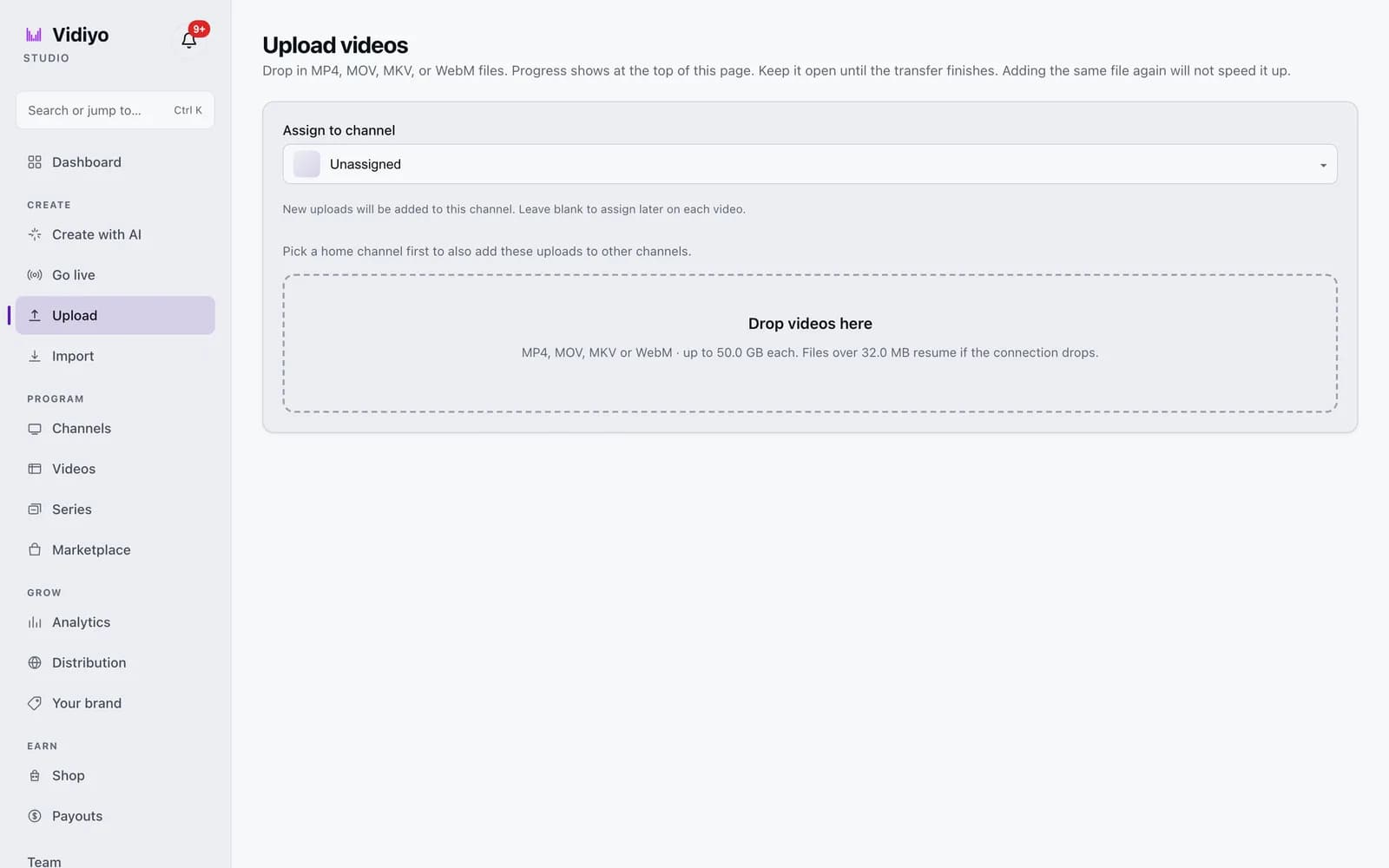
In the Studio sidebar, under Create, click Upload. The page title reads Upload videos.
The Upload video button on the Dashboard opens the same page.
2. Choose where the videos go
Assign to channel is set to Unassigned by default. Pick a channel and every file in this batch joins that channel's library as its home channel. Leave it on Unassigned to assign each video later on its edit page.
Once you pick a home channel, an Also on channels list appears. Check any other channels that should carry these uploads too.
If you pick an adult channel, a performer age attestation checkbox appears. You must check it before any file can be queued.
3. Drop your files
Drag files onto Drop videos here, or click the area to browse. You can drop several files at once.
The area lists the rules: MP4, MOV, MKV or WebM, up to 50.0 GB each. Files over 32.0 MB resume if the connection drops. A file that is too big or the wrong format is refused with a message naming the file, and nothing else is affected.
4. Watch the transfer
Each file gets a row at the top of the page with a progress bar. Two files transfer at a time; the rest wait in the queue. Keep the page open until the transfer finishes.
- Cancel stops a transfer in progress.
- Retry appears on a failed row and starts it again.
- Done marks a finished upload.
A dropped connection does not fail the row right away. Files over 32 MB retry on their own and continue from the last byte the server received.
When a file finishes, a message reads We're getting the video ready. It can be scheduled in about a minute. It offers Open schedule if you assigned a channel, or Go to videos if not.
5. Find the video under Videos
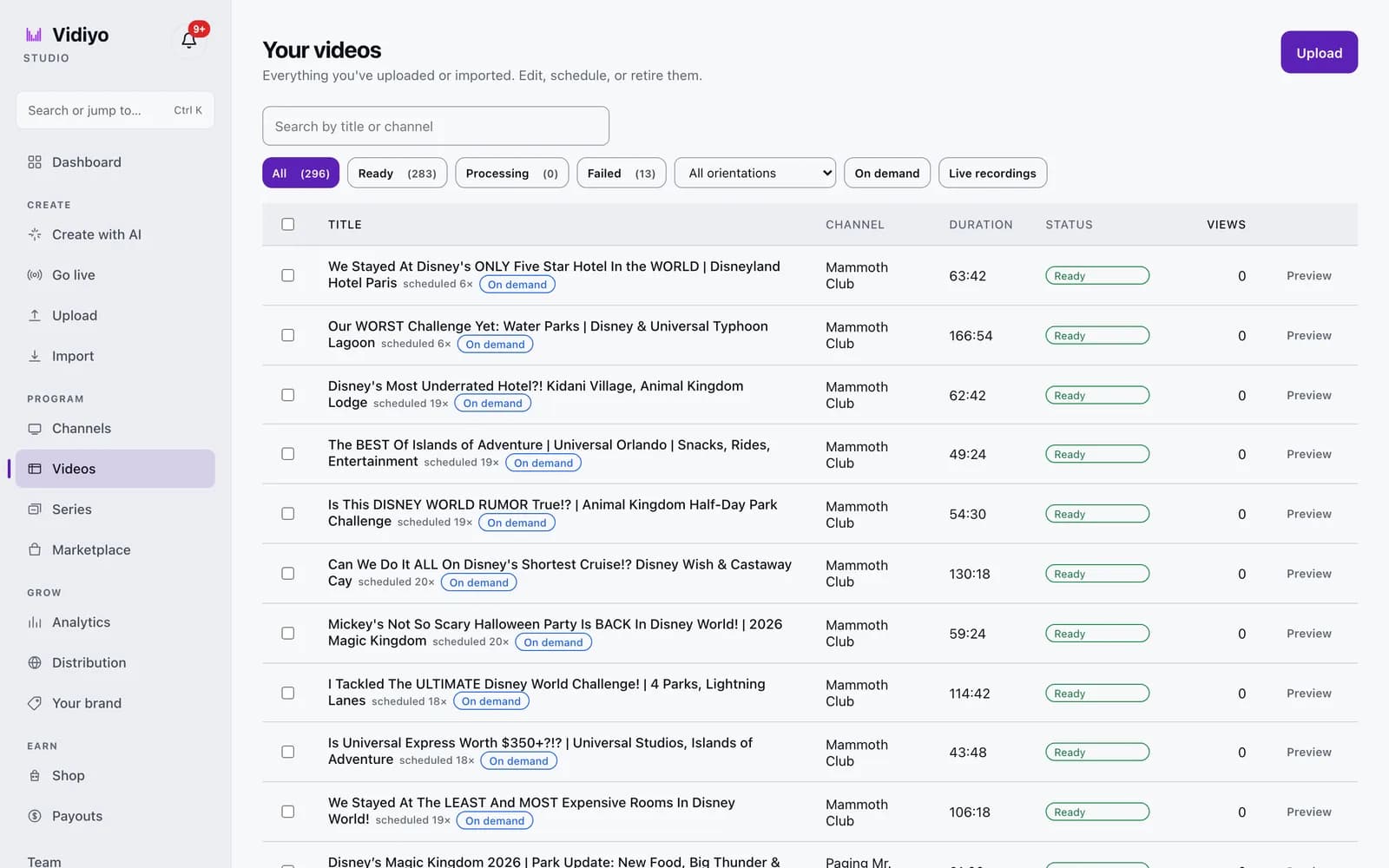
In the sidebar, under Program, click Videos. The Your videos page lists everything you have uploaded or imported.
Filter by status with All, Ready, Processing, and Failed. Narrow further with All orientations, On demand, and Live recordings, or type in Search by title or channel. A video in Processing flips to Ready on its own; the list refreshes while anything is still processing.
Click a title to edit it, or click Preview to watch it. Check several rows to delete them together.
Tips
- Set Assign to channel before a big batch. It saves reassigning each video afterwards.
- Dropping the same file again while it is transferring does not speed it up. Wait for the row to finish.
- If a video shows Failed with a Retry processing button, click it. Processing restarts on the same file, so you do not upload again. If it reads Re-upload required, the file itself needs to be uploaded again.
- The first video you add to a channel locks that channel's orientation. Upload a landscape video first if you want a landscape channel.
Quick answers
What video formats can I upload to Vidiyo?
MP4, MOV, MKV, and WebM. Anything else is refused with a message naming the file and the accepted formats.
Can I upload a file bigger than 50 GB?
No. 50 GB is the limit per file. A larger file is refused before the transfer starts, with a message showing its size and the limit.
What happens if my connection drops during an upload?
Files over 32 MB use resumable uploads. When the connection returns, the transfer continues from where it stopped. If you reloaded the page, drop the same file again and it picks up the same upload. Smaller files restart from the beginning.
How long until my video is ready to schedule?
Most videos are ready about a minute after the transfer finishes. Long files take longer to transcode. The Processing filter on the Videos page shows what is still in progress.
Can I upload several videos at once?
Yes. Drop as many files as you like. Two transfer at the same time and the rest wait in the queue, each with its own row and progress bar.
Open Studio
Upload a video, go live, or program your channel. Studio is free, and every guide here walks you through one task.