 Vidiyo
Import videos
Bring videos into Vidiyo Studio from YouTube links, up to 100 at a time, or from an HTTPS JSON catalog feed, and track each one until it is ready to schedule.
Importing copies videos you already publish elsewhere into your Vidiyo library. Vidiyo fetches each file, transcodes it, and adds it to the channel you pick. There are two sources: YouTube links, and a catalog feed (a JSON list of titles and video URLs).
Use import when your back catalog lives on YouTube or on your own servers. To send files from your computer, see Upload a video.
Before you start
- Sign in to Vidiyo Studio with a verified email.
- Create at least one channel. Imports land in a specific channel, and the page asks you to create one if you have none.
- Make sure you hold the rights to copy the videos onto Vidiyo and air them.
Steps
1. Open Import
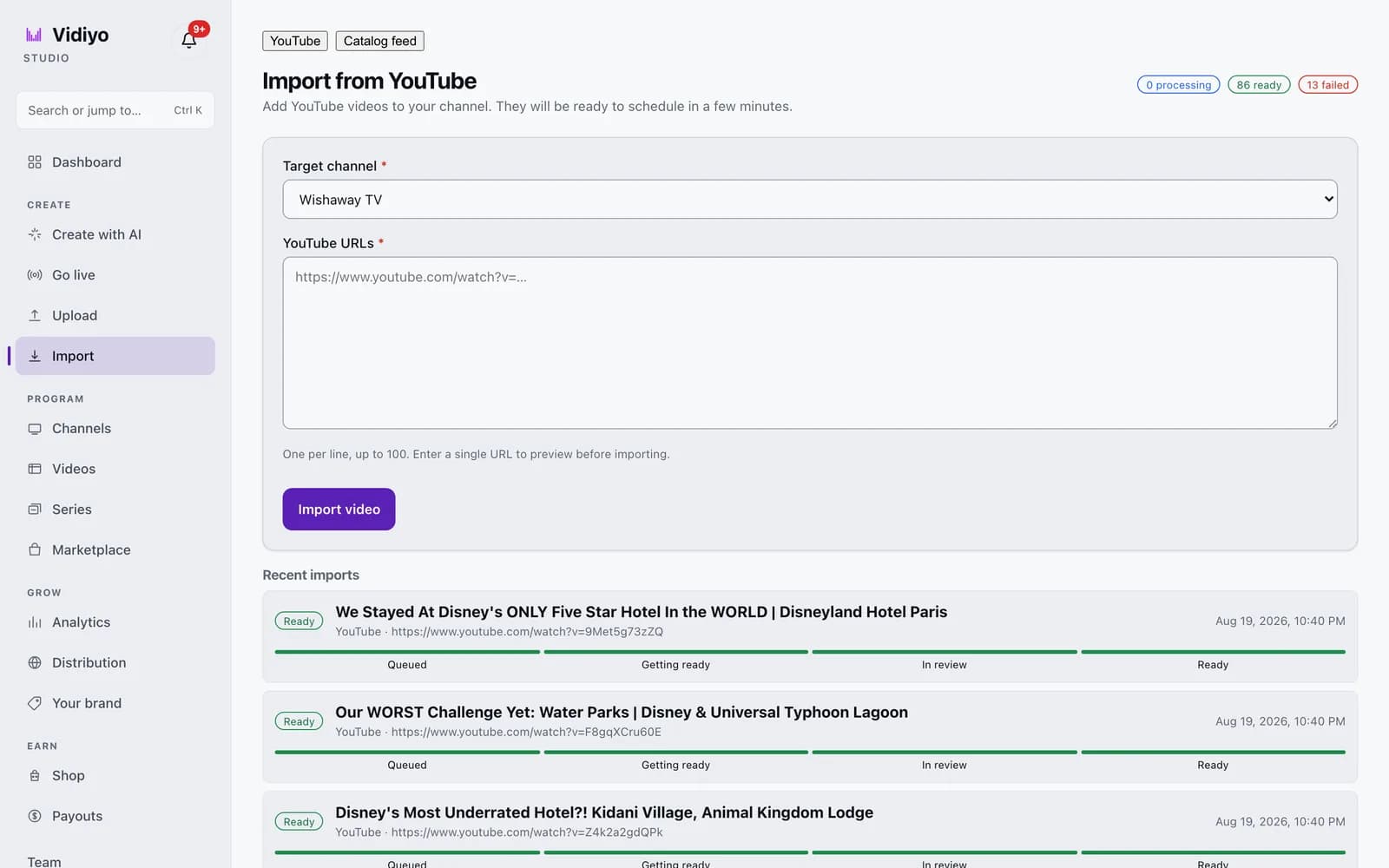
In the Studio sidebar, under Create, click Import. Two tabs sit at the top of the page: YouTube and Catalog feed. YouTube is selected first.
The header shows running totals once you have imports: processing, ready, and failed.
2. Pick the target channel
Under Target channel, choose the channel these videos belong to. Each imported video joins that channel's library as its home channel.
3. Paste YouTube URLs
In YouTube URLs, paste one link per line, up to 100. Lines that are not web links are ignored.
Paste a single URL and a Preview video button appears. Click it to see the title and thumbnail before importing. Two warnings can appear here.
- Already imported. This video is already in your library. The import button stays disabled.
- An orientation warning, such as "This video appears to be portrait but your channel is locked to landscape content." The import button stays disabled. Pick a channel that matches the video.
4. Start the import
Click Import video. With several URLs the button reads Import followed by the count, for example Import 12 videos. A message confirms Started importing 12 videos.
Each video appears under Recent imports with a progress strip: Queued, Getting ready, In review, Ready. The list refreshes every 8 seconds while anything is in progress. The page shows the 20 most recent; click Show older imports below the list to see the rest.
A video marked Ready is in your library and can be scheduled. Failed means Vidiyo could not fetch or process it. Blocked means it was stopped in review and will not air.
5. Import a catalog feed instead
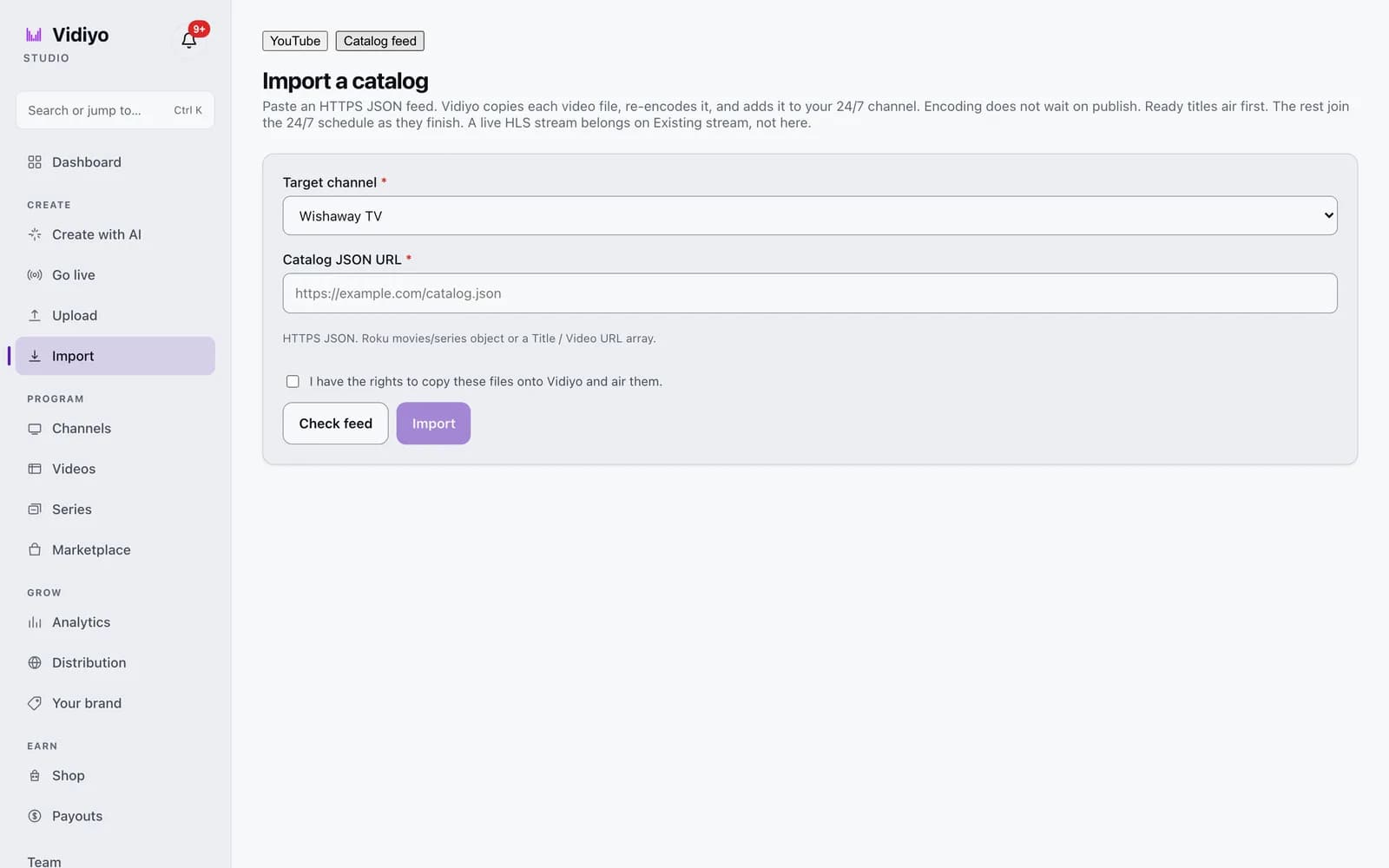
Click the Catalog feed tab. The page title reads Import a catalog. Pick a Target channel; it must be a 24/7 channel.
Paste your feed into Catalog JSON URL. It must be an HTTPS URL. The feed is either a Roku movies/series object or an array of Title / Video URL entries. Click Check feed to see what Vidiyo found. The summary shows how many titles are ready to import and how many are already on this channel. It also lists skipped titles and the reason: HLS/DASH, live feeds, DRM, no file, or unsafe URLs.
Check I have the rights to copy these files onto Vidiyo and air them. The Import button unlocks. For an adult channel, a performer age attestation checkbox appears as well.
Click Import. Vidiyo queues up to 100 titles per batch. When more remain, the summary says how many are waiting and the button changes to Import next 100.
Tips
- Use Preview video on the first link from a new source. It catches an orientation mismatch before you paste 100 of them.
- Encoding does not wait on publish. Ready titles air first, and the rest join the 24/7 schedule as they finish.
- A feed that lists live HLS streams belongs on a channel of type Existing stream: HLS + XMLTV, not here. The catalog importer skips live entries and tells you how many.
- Titles already in your library are attached to the channel instead of being copied again.
Quick answers
How many YouTube videos can I import at once?
Up to 100 URLs per import, one per line. Paste the next batch after clicking the import button.
Why is the Import button disabled after I preview a video?
One of two warnings is showing. Already imported means the video is in your library already. An orientation warning means the video's shape does not match a channel that is locked to landscape or portrait content. Choose a matching channel.
How long does a YouTube import take?
The page says "They will be ready to schedule in a few minutes." Each video moves through Queued, Getting ready, and In review before it shows Ready. Long videos take longer.
What format does the catalog feed need?
An HTTPS URL that returns JSON. Either a Roku-style object with movies and series, or a plain array of entries with a title and a video URL. Click Check feed to confirm Vidiyo can read it before you import.
Can I import from a source other than YouTube or a JSON feed?
Not from this page. For files on your computer, use Upload. For a live HLS stream, create a channel of type Existing stream: HLS + XMLTV or schedule a timed live stream on a 24/7 channel.
Open Studio
Upload a video, go live, or program your channel. Studio is free, and every guide here walks you through one task.