 Vidiyo
Edit video details
Set a video's title, description, home channel, rating, on-demand availability, tags, and thumbnail in Vidiyo Studio, where changes save as you type.
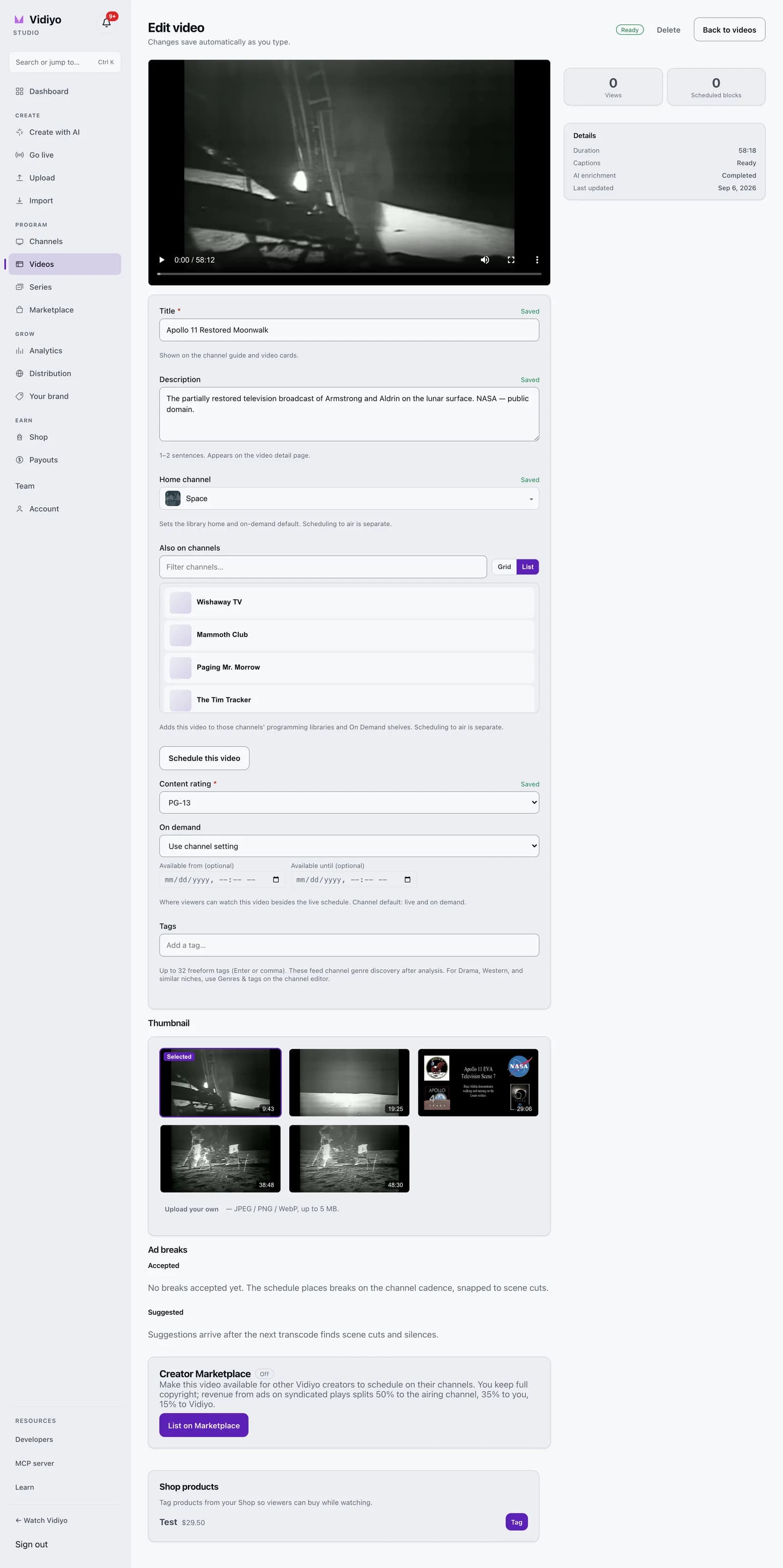
The video editor is where you shape how a video appears on the guide, on video cards, and in On Demand. It is also where you choose which channels carry it, pick a thumbnail, and set ad breaks.
Every field saves on its own about half a second after you stop typing. There is no Save button. Each field shows Saved when it has.
Before you start
- Have at least one video in your library, uploaded or imported.
- Ratings, thumbnails, and ad breaks need the video to finish processing first.
Steps
1. Open the video
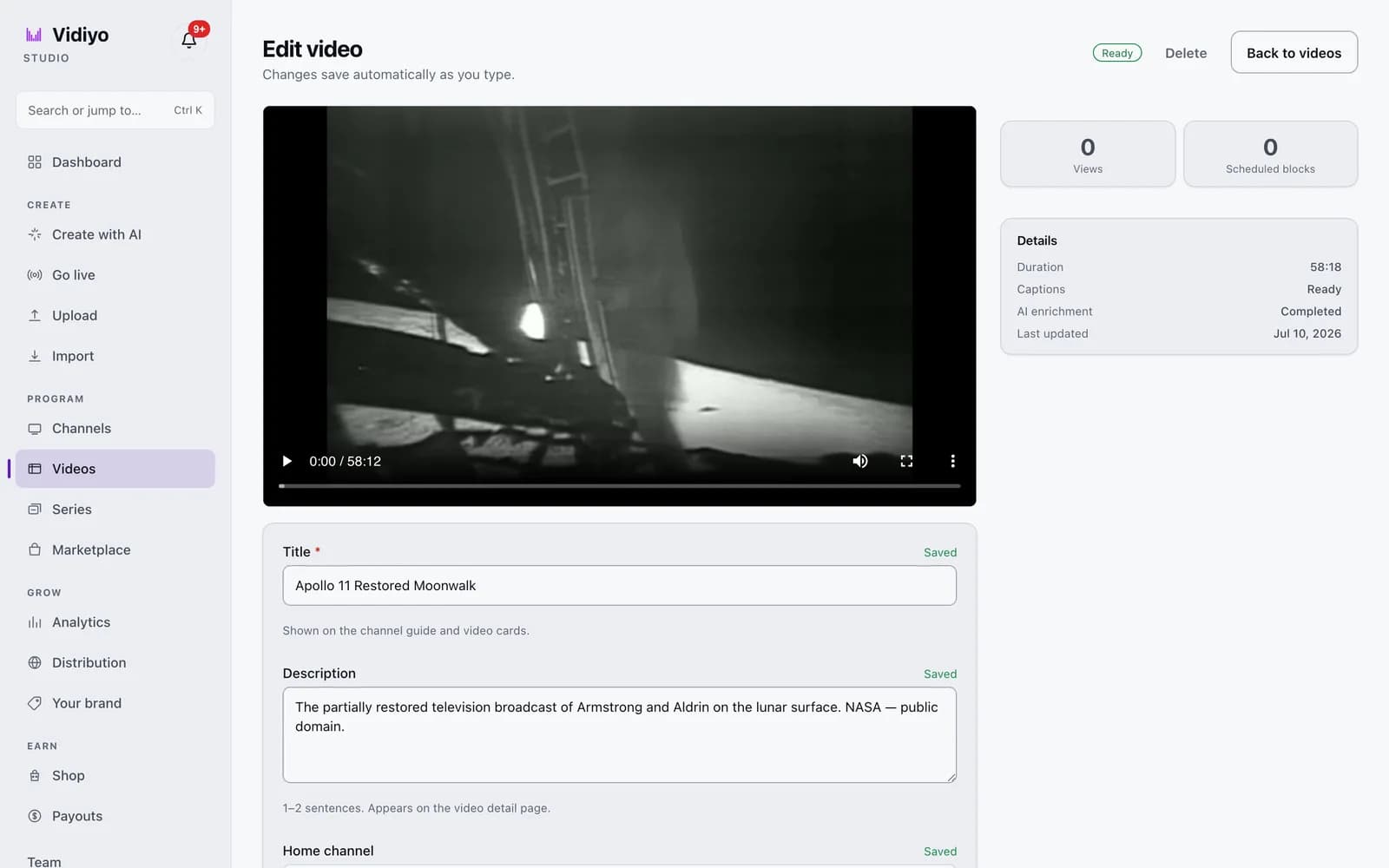
In the Studio sidebar, under Program, click Videos. Click a title in the list. The page title reads Edit video with the line "Changes save automatically as you type."
The top right shows the status chip (for example Ready), a Delete link, and Back to videos.
2. Write the title and description
Title is required and up to 140 characters. It is shown on the channel guide and video cards.
Description is up to 500 characters. Aim for 1 to 2 sentences; it appears on the video detail page. When AI analysis has run, the field may already hold a suggestion marked AI suggested, edit freely. Change it however you like.
3. Choose the channels
Home channel sets where the video lives and its on-demand default. Scheduling to air is a separate step.
Also on channels adds the video to other channels' programming libraries and On Demand shelves. Type in Filter channels to find one, and switch between Grid and List views. Click Schedule this video to put it on the home channel's schedule now.
4. Set the rating and on-demand availability
Content rating is required: G, PG, PG-13, or TV-MA. If AI analysis suggested one, the hint reads AI suggested, change if needed.
On demand controls where viewers can watch besides the live schedule.
- Use channel setting follows the home channel's distribution setting.
- Always on demand lists the video in On Demand regardless of the channel.
- Live only keeps it on the schedule.
Available from and Available until are optional dates that limit the on-demand window.
5. Add tags and pick a thumbnail
Tags accepts up to 32 freeform tags. Press Enter or type a comma after each one. Tags feed channel genre discovery after analysis. When suggestions exist, they appear under AI suggested; click one to add it.
Under Thumbnail, click any frame to make it the poster. The current one is marked Selected. Click Upload your own for a custom image: JPEG, PNG, or WebP between 1 KB and 5 MB.
6. Review ad breaks and the lower sections
Ad breaks has two lists. Accepted shows the breaks that will be used. Until you accept any, the schedule places breaks on the channel cadence, snapped to scene cuts. Suggested lists breaks Vidiyo found at scene cuts and silences; click Accept on one, Accept all, or Refresh. Suggestions arrive after the next transcode.
Creator Marketplace lets other Vidiyo creators schedule this video on their channels. You keep full copyright. Ad revenue on those plays splits 50% to the airing channel, 35% to you, and 15% to Vidiyo. Click List on Marketplace to opt in.
Shop products tags items from your Shop so viewers can buy while watching. Click Tag next to a product.
Tips
- The Details card on the right shows Duration, Captions, Orientation, AI enrichment, and Last updated. Check Captions: Ready before scheduling on a channel that needs them.
- Removing a video from a channel under Also on channels does not delete it. It stays in your library and on its home channel.
- Accept ad breaks on long videos. Breaks at scene cuts feel far better than breaks on a fixed clock.
- Delete warns you when the video is scheduled: "This video is scheduled in 3 upcoming blocks. Deleting will remove it from the schedule."
Quick answers
Where is the Save button?
There is none. Each field saves about half a second after you stop typing and shows Saved next to its label. While a save is in flight it reads Saving, and if it fails it reads Save failed and keeps your text.
How long can a video title be?
140 characters. The description allows 500. Both fields stop accepting input at the limit.
Can a video be on more than one channel?
Yes. Set one Home channel, then check any others under Also on channels. The video joins each channel's programming library and On Demand shelf. Scheduling it to air on each channel is a separate step.
How do I change a video's thumbnail?
Scroll to Thumbnail on the edit page. Click one of the frames Vidiyo pulled from the video. Or click Upload your own and choose a JPEG, PNG, or WebP between 1 KB and 5 MB.
What happens when I delete a video?
It is permanently removed from your library and from any channel libraries. If it is scheduled, the dialog tells you how many upcoming blocks will lose it. Click Delete video to confirm.
Open Studio
Upload a video, go live, or program your channel. Studio is free, and every guide here walks you through one task.