 Vidiyo
Create a series
Group videos into an ordered series in Vidiyo Studio, choose how many episodes are free, and price the rest per episode or with a season pass.
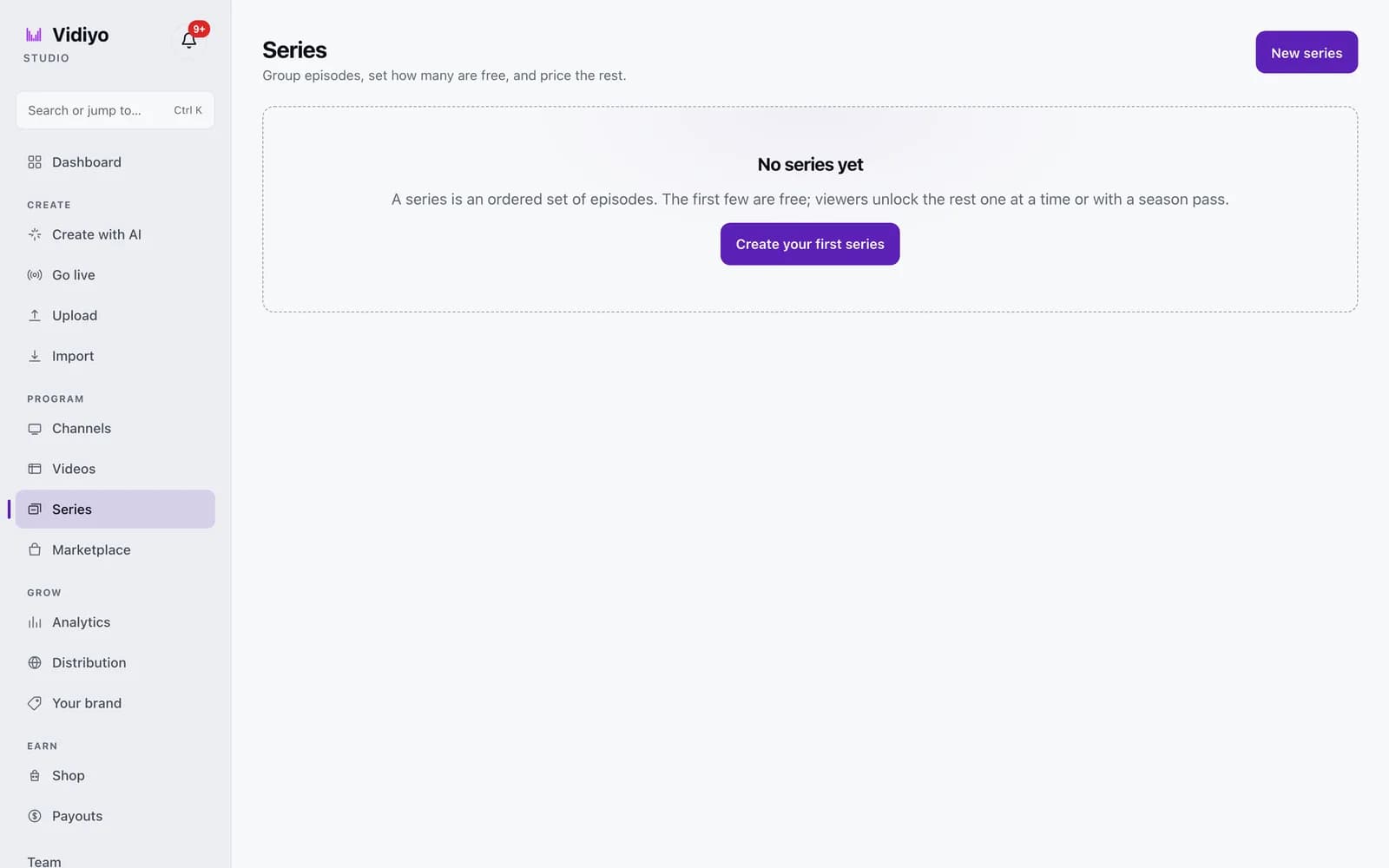
A series is an ordered set of episodes. The first few play free; viewers unlock the rest one episode at a time with credits, or all at once with a season pass. Use a series for anything with a natural order: a course, a documentary in parts, a show with seasons.
Series also change how a channel schedules. With Play episodes in order on in the channel's Rules, Auto-fill treats a series as one entry and always offers its next episode.
Before you start
- Upload the videos you want as episodes and wait for them to finish processing. Only ready videos can be added.
Steps
1. Open Series
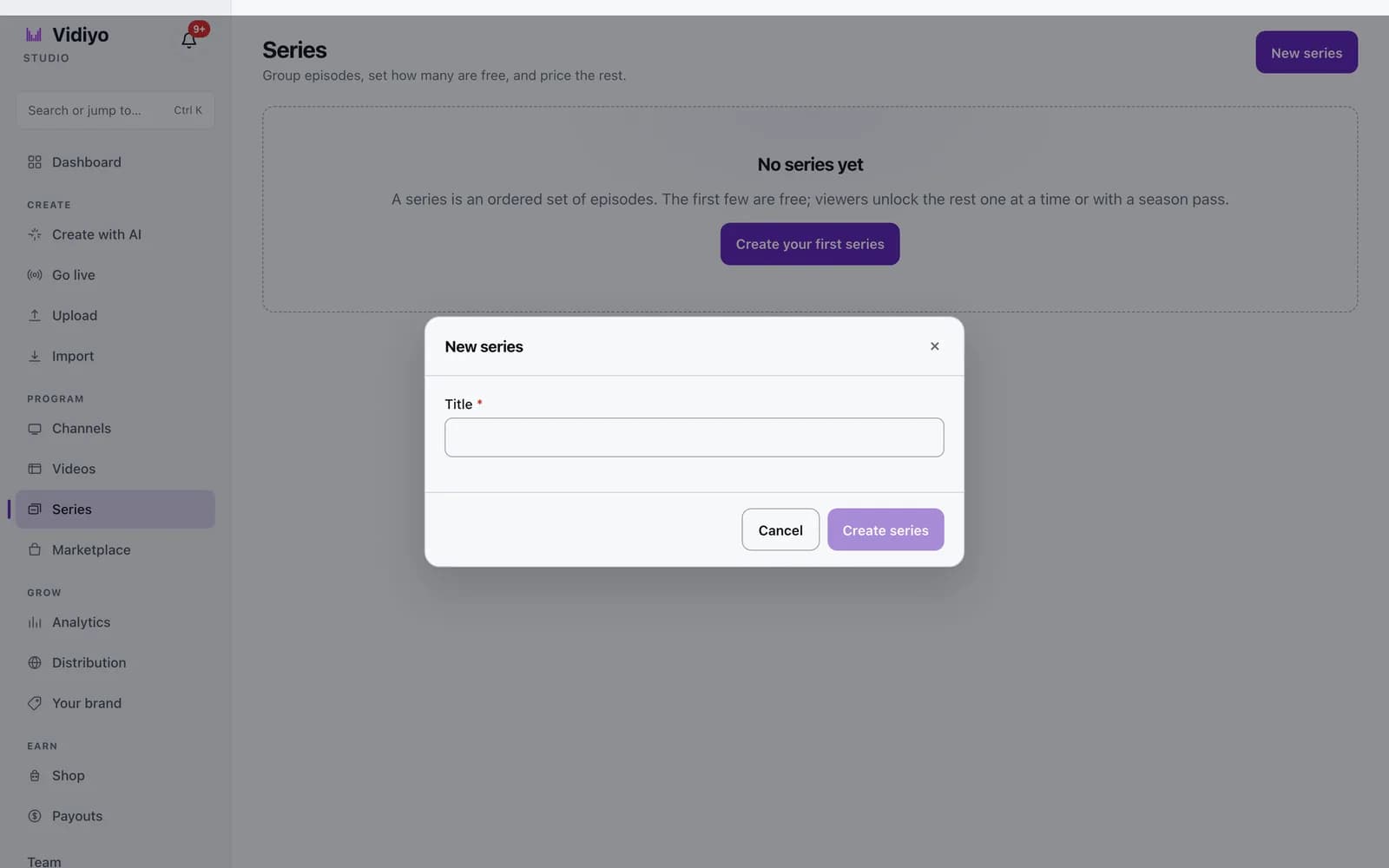
In the Studio sidebar, under Program, click Series. The page lists every series you own with its episode count, how many are free, and its price. If you have none yet, you see No series yet with a Create your first series button.
2. Create the series
Click New series in the top right, or Create your first series. In the New series dialog, type a Title of up to 200 characters and click Create series. Studio confirms the series was created and opens its editor.
3. Set free episodes and pricing
The editor's first card holds the series settings.
- Title and Description. The description can run to 5,000 characters.
- Free episodes: how many episodes viewers watch before the paywall. New series start at 3.
- Credits per episode: the price to unlock one paywalled episode. New series start at 20 credits.
- Season pass (credits): one price that unlocks every episode. Leave it empty to sell episodes one at a time only.
Click Save series.
4. Add episodes in order
Under Episodes, type in the search box labeled Search your ready videos to add an episode. Click Add as next episode beside a result. It joins the end of the list with the next episode number.
Each episode row shows its number, thumbnail, title, and duration, plus a Free or Paywalled badge. The line under the heading tells you which episode the paywall starts at. Use the up and down arrows to reorder, and Remove to take an episode out of the series. Removing an episode does not delete the video.
Tips
- Episode order sets the paywall. With 3 free episodes, episodes 1 to 3 are free and episode 4 onward is paywalled. Reorder and the badges update.
- A viewer with an active fan subscription to you can watch every episode without buying an unlock. Season passes and per-episode unlocks are for everyone else.
- A series can hold up to 500 episodes.
- To pause sales without losing the series, raise Free episodes to match the episode count. Every episode becomes free.
Quick answers
How do viewers pay for episodes?
With credits. A viewer buys credits once and spends them on a single episode at your Credits per episode price. They can also unlock the whole series at your Season pass price. Episodes at or below your Free episodes count never need credits.
Can I add a video to more than one series?
A video can appear once per series. The episode search marks videos already in this series as Added, and the editor rejects a duplicate. Nothing stops the same video from being an episode in two different series.
Do I have to charge for a series?
No. Set Free episodes to the total number of episodes and every episode plays free. You can still use the series for episode ordering in channel schedules.
What happens when I delete a series?
Click Delete series in the editor header and confirm. The series and its episode list are removed. The videos themselves stay in your library.
Open Studio
Upload a video, go live, or program your channel. Studio is free, and every guide here walks you through one task.