 Vidiyo
Set up your brand site
Draft a white-label watch site in Vidiyo Studio with your name, colors, logo, and channels, attach your own domain, and publish it when access is on.
Your brand is a white-label watch site under your own name. It carries your colors, logo, and layout, shows only the channels you pick, and can live on a domain you own. Your channels still appear on vidiyo.com unless you choose to hide them.
This page is separate from channel art. Each channel's logo and banner live under Channels and show on Vidiyo and in the apps. Publishing a brand site needs white-label access from the Vidiyo team; you can draft everything before that is turned on.
Before you start
- Create at least one channel. A brand site needs one selected channel before it can publish.
- Have a square logo ready (400x400 recommended, up to 10 MB). You also need a privacy policy URL and a terms of use URL for your site footer.
- If you want a custom domain, you need access to the DNS records for a hostname you own.
Steps
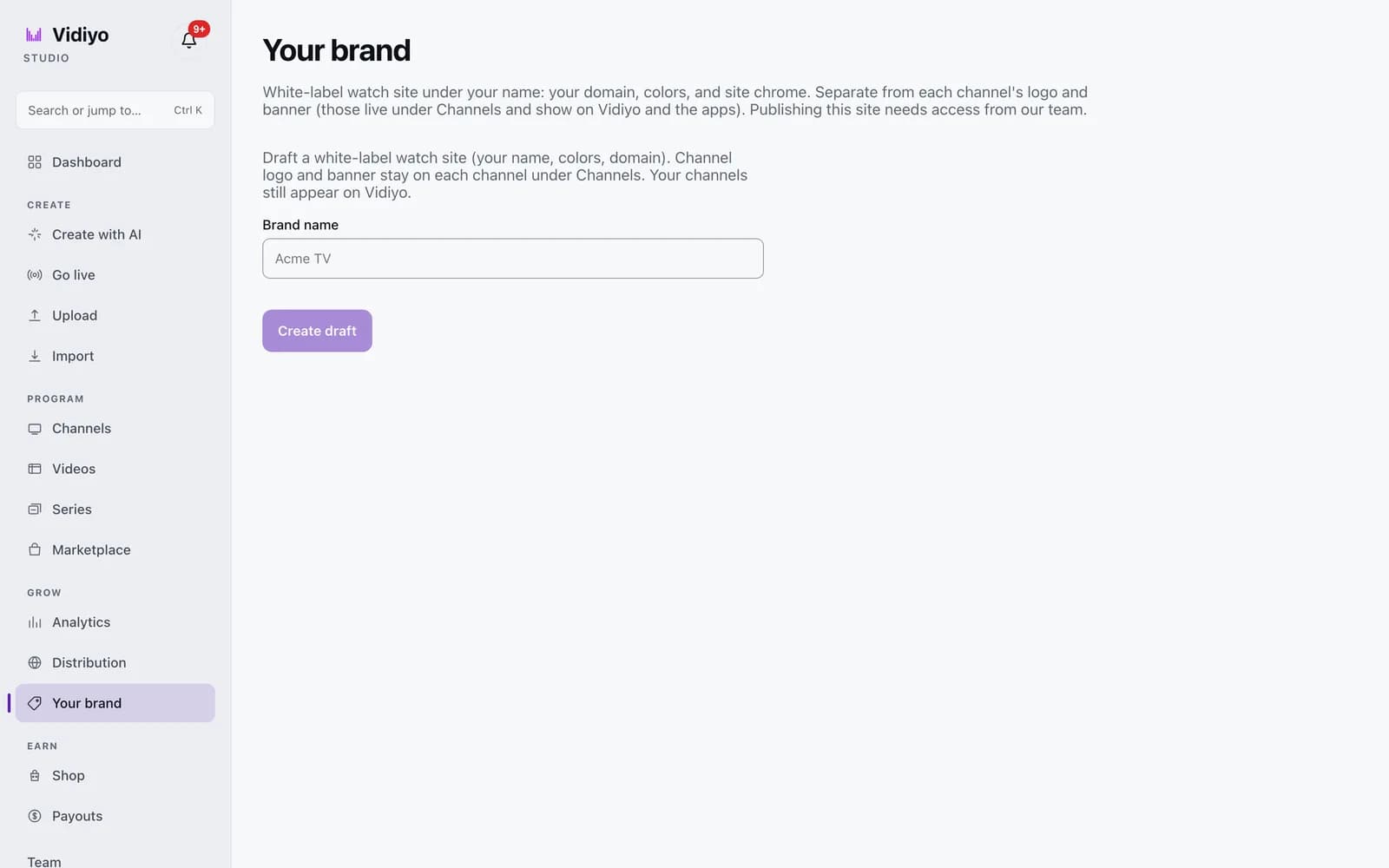
1. Create a draft
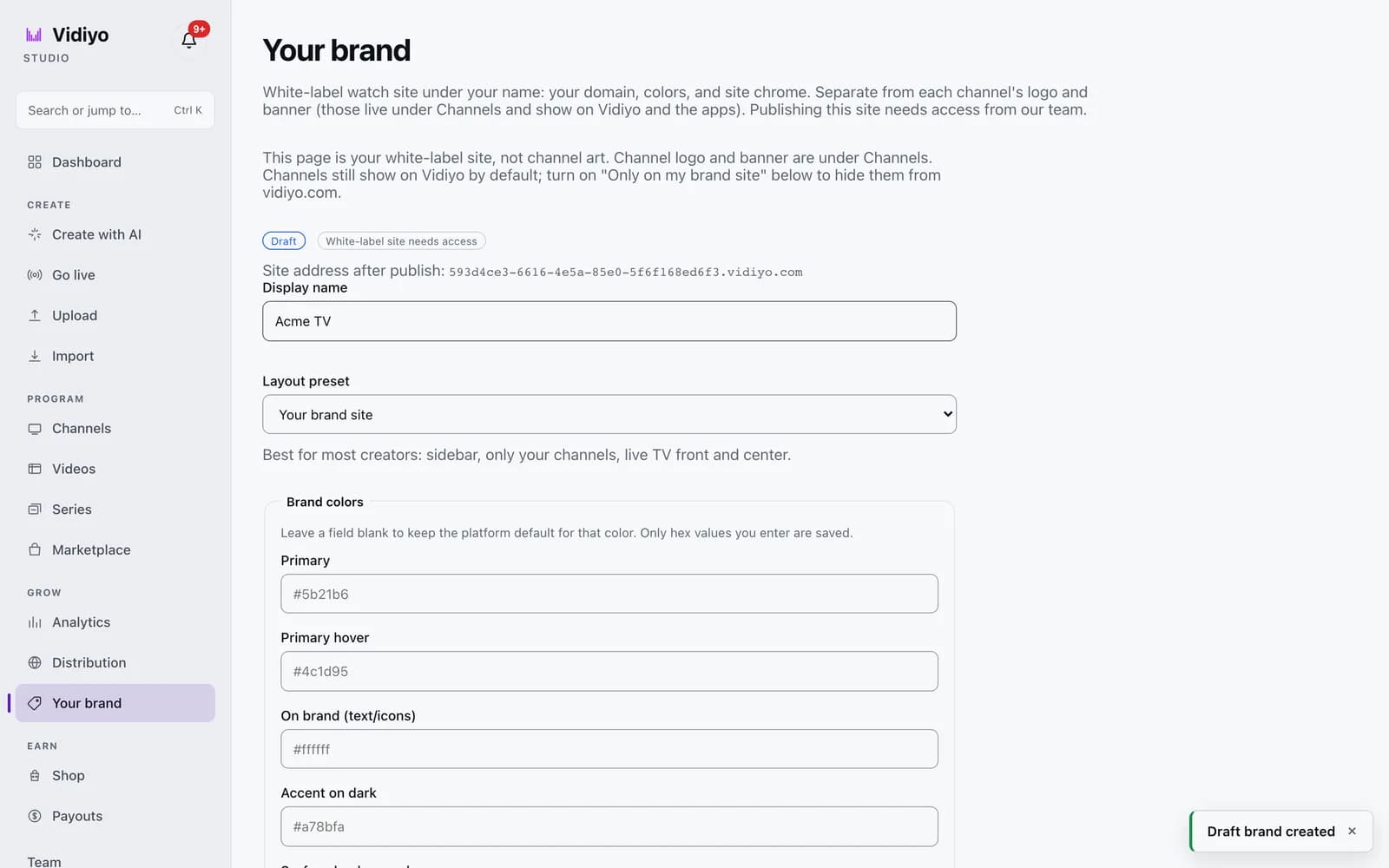
In the Studio sidebar, under Grow, click Your brand. Type a Brand name and click Create draft. A toast confirms Draft brand created. The page reloads with a Draft badge and a White-label site needs access badge until access is granted. It also shows your Site address after publish, a preview hostname on vidiyo.com.
2. Pick a layout preset
Set Display name if you want it to differ from the brand name. In Layout preset, choose Your brand site for a sidebar layout that shows only your channels with live TV front and center. Choose Vidiyo-style browse for top tabs, broader discovery, and a full guide; this is rare under your own brand.
3. Set your colors
In Brand colors, enter hex values for the colors you want to change. Leave a field blank to keep the platform default. The list starts with Primary, Primary hover, On brand (text/icons), and Accent on dark, then covers surfaces, borders, text, the LIVE badge, and status colors. Only the values you type are saved.
4. Choose the look and layout
In Look and layout, pick one option in each row. Navigation chrome offers Layout default, Marketplace tabs, Brand sidebar, and Brand minimal. Home stage offers Cinematic hero, Channel wall, and Single live stage. On-player brand offers Mark corner, Wordmark bar, and Minimal. Guide density offers Full EPG, Now / next, and Hidden. Changes apply on the web at once; mobile and TV apps need a build that includes the recipe.
5. Upload site images
In White-label site images, click Upload site logo and pick your wordmark (400x400 recommended). The site logo is required to publish. You can also upload a Mark (square icon for player chrome and share cards) and an App icon (1024x1024 for stores and favicon). Hero art is a 1920x1080 backdrop for the home stage, and Background covers TV app screens. Each file can be up to 10 MB.
6. Select channels and legal links
Under Channels, tick each channel that should appear on your site, then choose a Primary channel. Tick Channel chat on the watch page to keep 24/7 chat on. Fill in Privacy policy URL and Terms of use URL; both are required to publish. Support URL and Filler video URL are optional.
7. Attach your own domain
In Custom domain, copy the CNAME target shown on the page. At your DNS host, add a CNAME record whose name is your subdomain (for example watch) and whose value is that target. Back in Studio, type the full hostname such as watch.example.com in Hostname to attach and click Add domain. The row shows pending until DNS resolves, then active. If it shows failed, check the CNAME and try again later.
8. Save and publish
Click Save draft as you go. The Before you go live box lists anything still missing. The checks are white-label access, a site logo, a privacy policy URL, a terms of use URL, and at least one channel. When the list is empty, click Publish. A toast confirms Your brand is live, the badge changes to Live, and an Open site link appears.
Tips
- Turn on Only on my brand site to remove your selected channels from vidiyo.com's Guide, On Demand, search, and direct links. Viewers still find them on your site. This switch needs white-label access.
- With exactly one channel selected under the Your brand site preset, Home uses a single-channel layout: hero, on demand, and a guide teaser.
- Embed your TV gives you an iframe snippet for another website. Choose In-page or Corner dock, a width from 480x270 to 1280x720 or a custom value between 320 and 1280, then click Copy embed code. The embed plays once your brand is published with at least one channel.
- You can add a domain and prepare DNS while the site is still a draft. It starts serving traffic after you publish.
Quick answers
What is the difference between my brand and my channel logo?
Your brand is the whole watch site: its name, colors, chrome, and domain. A channel logo and banner identify one channel and live under Channels. They show on vidiyo.com and in the Vidiyo apps whether or not you have a brand site.
Why can't I click Publish?
Publish stays disabled while the Before you go live box lists a blocker. The five checks are white-label site access, a site logo, a privacy policy URL, a terms of use URL, and one selected channel. Fix each item and click Save draft; the button turns on when the list is empty.
How do I get white-label site access?
The Vidiyo team grants it per account. Until then the page shows a White-label site needs access badge. You can still build and save the draft, attach a domain, and prepare DNS.
Do my channels leave vidiyo.com when I publish?
No. They stay on vidiyo.com by default. To hide them there and show them only on your site, turn on Only on my brand site. That switch is available once white-label access is on.
Can I buy a domain inside Studio?
The Buy a domain card checks a name for price and availability. It purchases the name through Cloudflare Registrar when that feature is enabled on your environment. If it reads Domain lookup is not configured in this environment, attach a domain you already own instead.
Open Studio
Upload a video, go live, or program your channel. Studio is free, and every guide here walks you through one task.